Where to Find DPI Settings on a Wireless Mouse
Learn where to find and adjust DPI settings on a wireless mouse across Windows, macOS, physical switches, and manufacturer companion software.
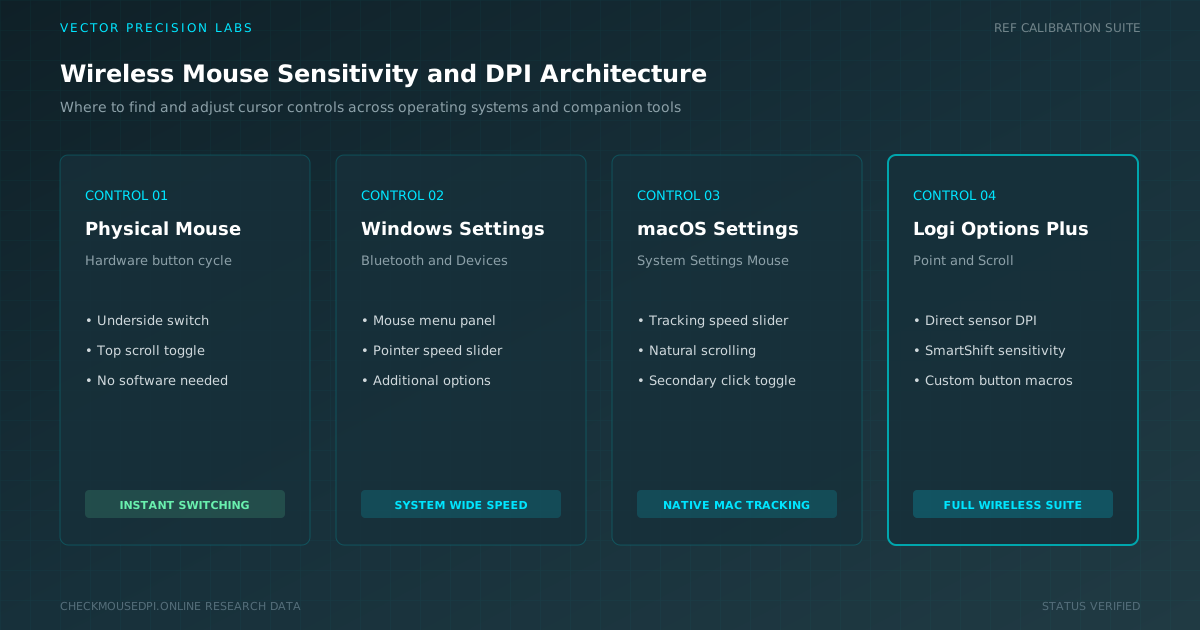
Finding the right DPI settings on a wireless mouse can make pointer movement feel much easier to control. DPI affects how far the mouse pointer travels when the mouse moves, so changing it can help with speed, accuracy, and comfort. Depending on the device, you may find these controls on the mouse itself, inside Windows settings, through macOS settings, or in dedicated mouse software.
Why DPI Settings Matter on a Wireless Mouse
The mouse DPI setting influences how quickly the pointer responds to physical movement. Higher DPI levels generally move the cursor farther with less hand travel, while lower settings allow more deliberate movement. This makes mouse sensitivity useful to adjust when accuracy or quick navigation becomes important.
A suitable setting can make everyday browsing, creative work, and gaming feel more natural. Instead of changing your entire workflow around one fixed value, you can use DPI adjustment to match the response of the mouse to the task.
How to Find DPI Settings on Your Wireless Mouse
First, inspect the physical mouse device. Some wireless models include a dedicated DPI button that cycles through preset DPI levels. If your mouse does not have such a button, the setting may be available through its companion application.
Look for options labeled DPI, sensitivity, pointer speed, or a similar control. This is often the quickest way to find DPI settings on a wireless mouse without changing unrelated mouse settings.
Where to Adjust Mouse DPI in Windows Settings
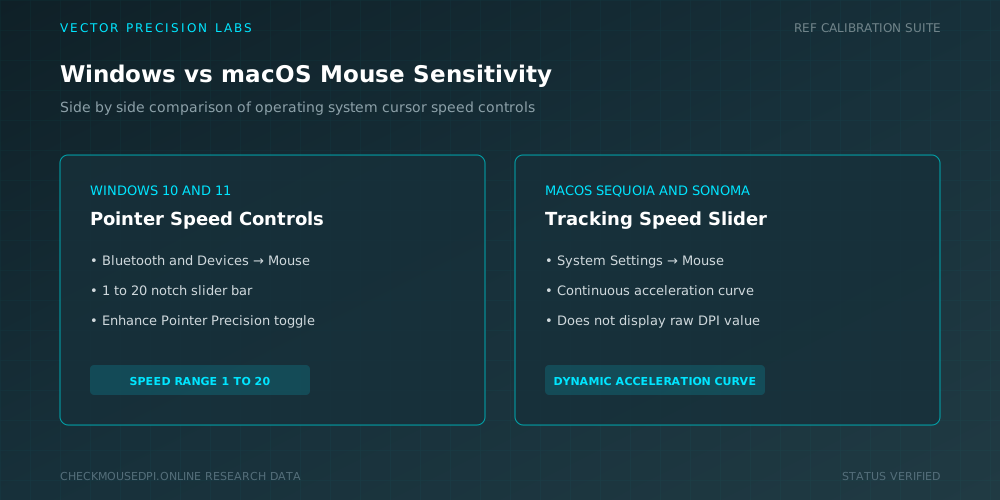
On Windows, open Windows settings and go to Bluetooth & devices, then select Mouse. From there, Windows provides controls related to pointer behavior. Some versions also include Additional mouse settings for more options.
The available pointer controls can be used to change how quickly the cursor reacts. If your wireless mouse does not expose a numerical DPI value in Windows, the system’s pointer controls can still help you alter its practical sensitivity.
How to Change Mouse Sensitivity on Windows
After opening the mouse controls, locate the pointer speed or motion control. You can adjust pointer speed by moving the sensitivity slider or motion slider. A slower response can make small selections easier, while a faster response reduces the physical movement needed to cross the screen.
Where to Find Mouse DPI Settings on a Mac
On a Mac, open System Settings and choose the mouse controls. macOS may present sensitivity through tracking rather than showing a specific DPI number. This means the setting can still change pointer behavior even when the exact DPI value is not displayed.
When you change mouse sensitivity on Mac, focus on how the pointer responds during normal use. The goal is comfortable movement rather than simply choosing the largest or smallest available value.
How to Adjust Tracking Speed on macOS
After you select Mouse or Trackpad, look for the tracking control. You can use the tracking speed slider to increase or decrease pointer responsiveness. This provides a practical way to adjust mouse sensitivity when your Mac does not display a numerical DPI setting.
How to Change DPI Using Mouse Software
Dedicated mouse software can provide more direct control than basic operating system settings. Compatible applications may let you save different sensitivity preferences, switch between DPI levels, or create a specific mouse configuration for different activities.
Where to Find DPI Settings in Logitech Options+
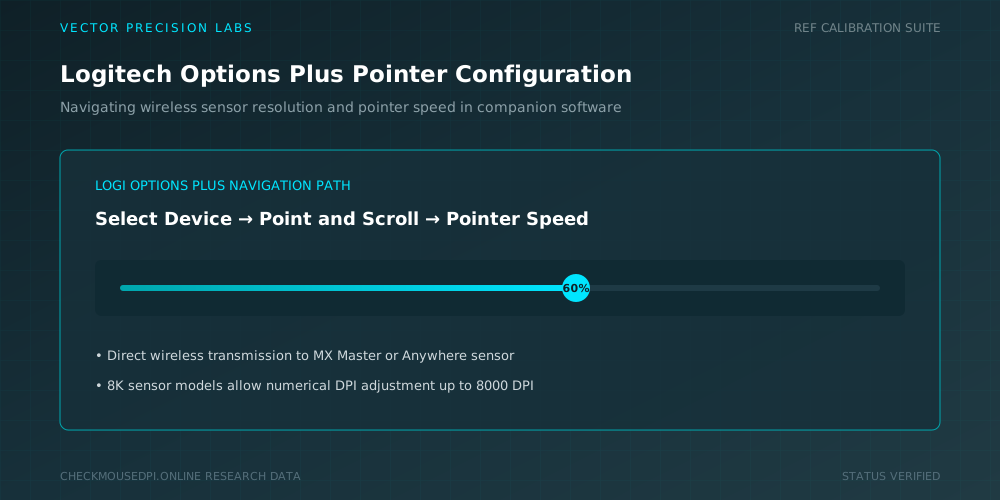
For compatible Logitech devices, Logi Options+ provides pointer controls through the application. Open the software and select your mouse to view its available settings.
Within the relevant controls, select Point and Scroll and find Pointer speed. You can then adjust the sensitivity using the available control. This is a convenient method for managing wireless mouse settings without relying only on the operating system.
Common Places to Find Mouse Sensitivity Controls
| Platform or Method | Where to Look | Main Control |
|---|---|---|
| Windows | Bluetooth & devices → Mouse | Pointer speed |
| Windows Advanced | Additional mouse settings | Motion controls |
| macOS | System Settings → Mouse | Tracking speed |
| Logi Options+ | Select device → Point and Scroll | Pointer speed |
| Physical mouse | DPI button, if available | Preset DPI levels |
How to Choose the Right DPI for Better Cursor Control
There is no universal DPI value that fits every user. The right setting depends on screen size, workspace, hand movement, and the task. A slower setting may provide steadier pointer control for detailed work, while a faster setting can make large displays easier to navigate.
Instead of focusing only on the number, watch how the cursor movement feels. If the pointer regularly overshoots buttons, reduce sensitivity. If you constantly need large hand movements, increase it gradually.
How to Fine-Tune Wireless Mouse Sensitivity for Different Tasks
Different activities can benefit from different sensitivity levels. Everyday browsing and documents often need a balanced response, while image editing can benefit from slower movement. A gaming setup may require its own preference depending on the game and style of play.
Conclusion
Knowing where to find DPI settings on a wireless mouse makes it easier to adapt pointer behavior to different needs. Depending on your device, you may use a physical DPI button, Windows controls, macOS tracking options, or software such as Logi Options+.
Once you locate the appropriate controls, you can change mouse DPI or adjust practical sensitivity without rebuilding your setup.
Elena Rostova (Input Lab)
Researches human-computer interaction, optical sensor telemetry, and esports hardware performance at Vector Precision Labs.