Precision tools for your desk setup
Check Mouse DPI
Measure the real sensitivity of your mouse in one calm, repeatable pass. No drivers. No downloads. Just a result you can trust.
To check mouse DPI means measuring the real Dots Per Inch (DPI) your mouse sensor reports during movement. DPI defines how many pixels your cursor moves per inch (2.54 cm) of physical travel — an 800 DPI setting moves the cursor 800 pixels for each inch of motion.
Instant Browser Measurement
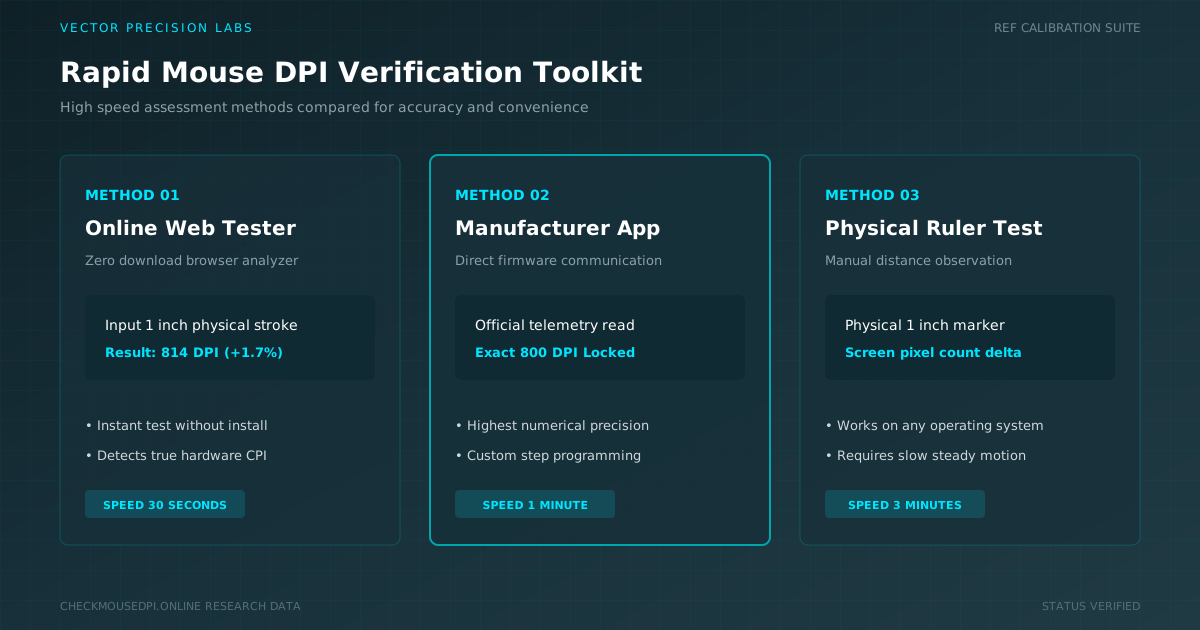
Measure mouse DPI directly in Chrome, Firefox, Safari, or Edge on Windows, macOS, iOS, and Android without drivers or third-party downloads.
Universal Device Testing
Find mouse DPI for Logitech, Razer, SteelSeries, or Corsair mice without launching Logitech G HUB, Razer Synapse, SteelSeries Engine, or Corsair iCUE.
Esports Aim Calibration
Calculate Effective DPI (eDPI) and cm/360° distance to align your pointer speed across Valorant, CS2, Apex Legends, Overwatch 2, and Fortnite.
How to Use Mouse DPI Analyzer
Follow 3 simple steps: select a travel distance, drag across the capture pad, and read your calculated DPI.
Align a ruler alongside your mousepad. Select 5 cm (1.97 in), 10 cm (3.94 in), or 20 cm (7.87 in) as your target baseline.
Click and hold the capture pad, slide your mouse horizontally across the ruler distance, and release at the mark.
View your measured hardware DPI, pixel counts, polling rate, and velocity to confirm sensor calibration.
- Windows / macOS Acceleration: Disable pointer acceleration in Windows Mouse Settings or macOS System Settings.
- Pointer Speed Ratio: Set Windows Pointer Speed to the 6th notch (default midpoint) for raw 1:1 input.
- Consistent Surface: Ensure a clean mousepad surface to prevent optical sensor misreads.
- Multiple Passes: Average 3 passes to minimize manual stopping discrepancies.
What Your DPI Result Means
DPI indicates sensor sensitivity — the number of pixels traversed per inch (2.54 cm) of physical movement. Higher values translate to faster cursor travel with smaller hand motions.
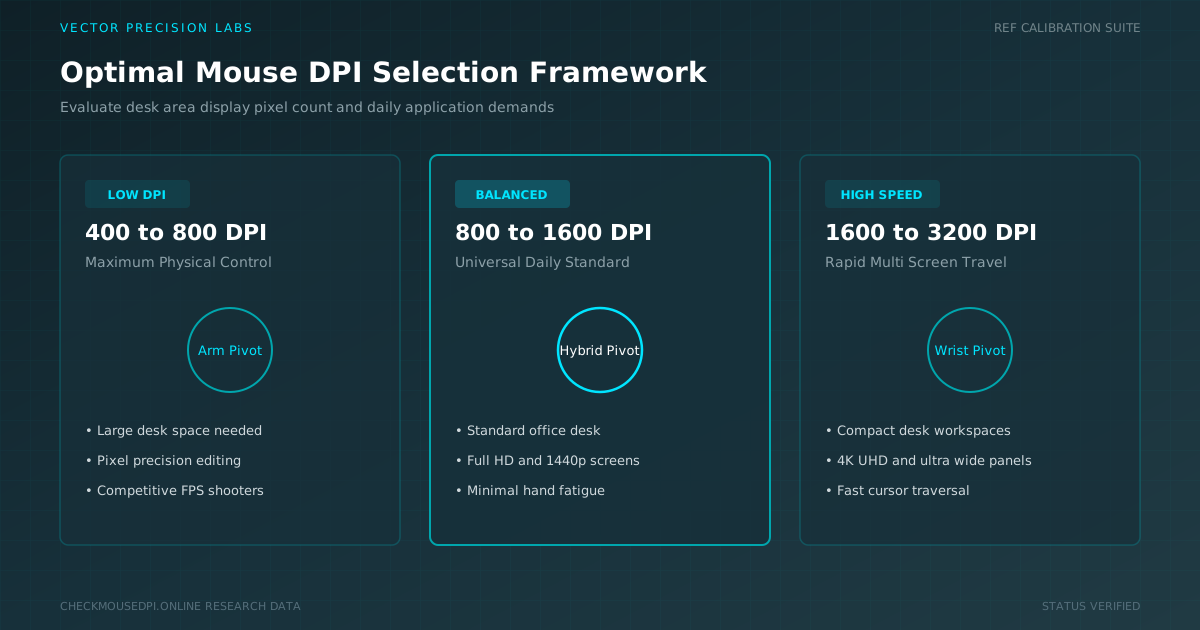
200–800 DPI: Low Sensitivity Range
Delivers micro-precision via large arm sweeps. Favored by CS2 and Valorant competitive players for consistent crosshair placement.
800–1600 DPI: Medium Sensitivity Range
Balances speed and control with sub-2 ms initial latency. Ideal for Apex Legends, Overwatch 2, Fortnite, and daily desktop use.
1600–6400+ DPI: High Sensitivity Range
Maximizes cursor speed for 4K displays and multi-monitor setups. Minimizes wrist travel during design and productivity workflows.
What DPI Should You Use?
Optimal DPI depends on your primary task, display resolution, and desk space. Complete the quick quiz below to determine your target setup.
What do you primarily use your mouse for?
What is your monitor resolution?
How large is your mousepad?
Polling Rate vs DPI: What's the Difference?
DPI measures spatial resolution (counts per inch), while Polling Rate (Hz) measures temporal frequency (reports per second sent to the CPU).
125 Hz Polling Rate
8.0 ms latency interval. Standard for basic office peripherals. Noticeable jitter during fast gaming sweeps.
1000 Hz Polling Rate
1.0 ms latency interval. The competitive esports baseline. Delivers near-zero frame delay on 144Hz–240Hz monitors.
4000 Hz Polling Rate
0.25 ms latency interval. High-speed USB protocol. Smoother tracking on 360Hz+ OLED gaming panels.
8000 Hz Polling Rate
0.125 ms latency interval. Cutting-edge sensor reporting. Requires modern multi-core CPU scheduling.
Native DPI vs Interpolated DPI
Understanding sensor hardware steps prevents artificial smoothing, micro-stutter, and firmware processing delay.
Pure Optical Hardware Steps
Native DPI steps (such as 400, 800, 1600, 3200) represent un-interpolated hardware sensor matrices. The PixArt 3395 and Focus Pro 30K track without digital manipulation.
Firmware Interpolation Latency
Non-standard intervals (e.g. 735 DPI) force the onboard microcontroller to mathematically extrapolate motion vectors, which can add 1–3 ms of smoothing lag.
Hardware DPI vs Software Sensitivity
Why adjusting physical hardware DPI is superior to increasing Windows or macOS digital multipliers.
Hardware Sensor Resolution
Physical sensor reporting generates authentic sub-pixel data without skipping screen pixels.
Digital OS Multipliers
Software multipliers above the 6th notch multiply coordinate steps, resulting in pixel skipping and reduced micro-precision.
Optimal DPI Settings by Gaming Genre
Professional sensitivity configurations tuned for target acquisition, tracking speed, and tactical crosshair stability.
Tactical Shooters (CS2, Valorant)
Prioritizes steady crosshair placement, micro-flicks, and arm-aiming precision.
Tracking Shooters (Apex, Overwatch 2)
Optimized for continuous 360° rotational tracking and fast target switching.
Battle Royale (Fortnite, Warzone)
Fast building edits combined with controlled scoped weapon aiming.
MOBA / RTS (League, Dota 2, SC2)
Enables rapid camera panning and map clicking with minimal wrist movement.
DPI Scaling Across Monitor Resolutions
How increasing your display pixel density affects physical cursor travel speed.
1080p Full HD (1920×1080)
400–800 DPI traverses the entire screen in 2.4–4.8 inches of physical movement.
1440p QHD (2560×1440)
800–1600 DPI maintains identical cursor speed as 1080p without wrist strain.
4K UHD (3840×2160)
1600–3200 DPI is required to cross 8.3 million pixels without excessive repositioning.
Ultrawide (3440×1440 / 5120×1440)
1600+ DPI recommended for rapid horizontal window navigation.
Mousepad Surface Friction & Skate Dynamics
How cloth weaves, cordura, glass pads, and PTFE skates alter real-world perceived sensitivity.
Control Cloth Pads
High dynamic friction gives maximum stopping power for tactical shooting.
Speed Cordura Pads
Low initial static friction allows effortless micro-adjustments.
Hard Glass Pads
Near-zero glide resistance for effortless high-velocity tracking.
Virgin Grade PTFE Skates
Rounded edges prevent pad gouging and ensure consistent 1:1 sensor distance.
Troubleshooting Inconsistent Mouse Movement
Resolve sensor stutter, angle snapping, acceleration artifacts, and irregular DPI deviations.
1. Disable Windows Pointer Acceleration
Uncheck 'Enhance pointer precision' in Control Panel → Mouse to prevent non-linear velocity scaling.
2. Clean Sensor Lens Aperture
Dust or hair in the sensor prism can cause sudden tracking dropouts or diagonal sensor spinouts.
3. Verify USB Port Direct Connection
Plug directly into rear motherboard USB ports to avoid USB hub polling rate throttling.
4. Calibrate Lift-off Distance (LOD)
Ensure LOD is set to low (1 mm) in your mouse companion software to eliminate liftoff tracking jitter.
Hardware Benchmark Matrix
Mouse DPI Reference & Benchmark Matrix
Compare sensor response latency, physical glide characteristics, and recommended game genres across standard DPI stages.
| Mouse DPI Reference & Benchmark Matrix | Sampling rate | Select Game Title | Confidence | Deviation vs Target |
|---|---|---|---|---|
| 400 DPI Arm Aiming (Low) | 6.35 ms | CS2, Valorant (Arm Aimers) | Immunity to hand tremors; high micro-correction precision | Higher initial motion delay; slow desktop navigation |
| 800 DPI Hybrid (Medium) | 3.18 ms | Universal FPS, MOBA, Apex, CoD | Gold standard for competitive gaming; natural desktop feel | Slightly higher delay than 1600 DPI |
| 1600 DPI Modern Sweet Spot | 1.59 ms | Fast tracking shooters (Apex, OW2, Finals) | 50% lower initial motion latency than 800 DPI; zero smoothing | Requires lowering in-game sensitivity multiplier |
| 3200 DPI Wrist Aiming (High) | 0.79 ms | High-refresh OLED (360Hz+), 4K Displays | Sub-millisecond sensor reporting; optimal for 4K/8K monitors | Picks up minor mousepad dust/weave texture on older sensors |
| 6400+ DPI Extreme / Synthetic | < 0.50 ms | Graphic Design, Ultra-wide multi-monitors | Instant screen traversal without wrist repositioning | Some sensors activate digital smoothing filters (adding lag) |
Esports Calibration Tool
Esports eDPI & Sensitivity Converter
Convert sensitivity and calculate cm/360° across Valorant, CS2, Apex Legends, Overwatch 2, and Fortnite.
Knowledge Base
Frequently Asked Questions
Common questions about checking mouse DPI, mouse sensitivity settings, sensor polling rates, and Effective DPI (eDPI) calculations.
01 What does DPI mean on a computer mouse?
DPI (Dots Per Inch) measures how many pixels your cursor moves across the screen for each inch (2.54 cm) of physical mouse movement. An 800 DPI setting moves the cursor 800 pixels per inch of motion. It is configured at the hardware sensor level via software such as Logitech G HUB, Razer Synapse, SteelSeries Engine, or Corsair iCUE.
02 How do I find out my current mouse DPI?
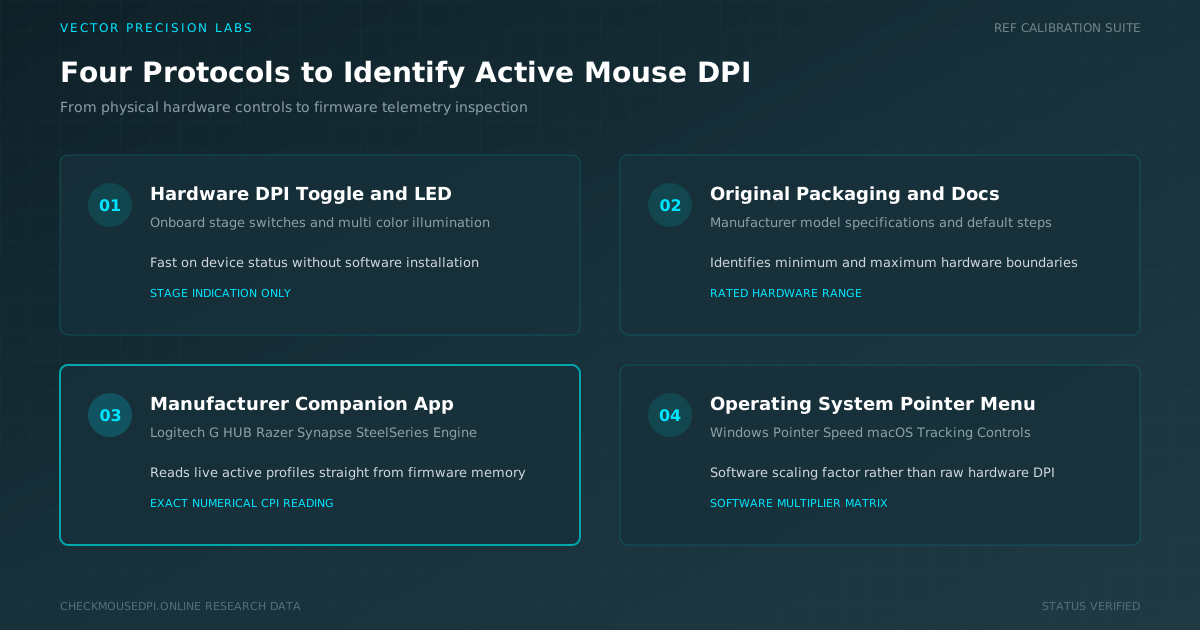
You can find your mouse DPI in 4 ways: (1) In companion software (Logitech G HUB, Razer Synapse, etc.). (2) Using this online DPI analyzer. (3) Checking manufacturer technical specifications. (4) Checking the DPI LED indicator color on your mouse.
03 Why does my mouse feel faster or slower than expected?
Speed depends on hardware DPI, OS multipliers, and pointer acceleration. In Windows 10/11, disable 'Enhance pointer precision' and set pointer speed to the 6th notch in Control Panel → Mouse for raw 1:1 tracking.
04 Does higher DPI make a mouse more accurate?
No. Higher DPI increases cursor speed, not sensor precision. Accuracy depends on optical sensor quality. A top-tier sensor at 800 DPI outperforms a mediocre sensor at 6400 DPI with artificial smoothing.
05 Can I check mouse DPI without installing software?
Yes. This online analyzer measures DPI directly in Chrome, Firefox, Safari, or Edge on Windows, macOS, Linux, Android, and iOS using browser pointer movement APIs.
06 What is the difference between DPI and eDPI?
DPI is the hardware sensor resolution, while eDPI (Effective DPI) is DPI × In-Game Sensitivity (e.g. 800 DPI × 1.5 = 1200 eDPI). It is the competitive standard for comparing sensitivities across players.
07 How does DPI affect gaming performance?
DPI impacts gaming in 3 ways: (1) Initial motion latency (1.59 ms at 1600 DPI vs 6.35 ms at 400 DPI). (2) Tracking smoothness via sub-pixel sampling. (3) Mousepad space required for 360° turns.
08 Can two mice with the same DPI feel different?
Yes. PTFE skate friction, sensor position, weight, mouse shape, and polling rate (1000 Hz vs 4000 Hz) drastically change the physical feel even at identical DPI.
09 What is native DPI and why does it matter?
Native DPI corresponds to un-interpolated hardware sensor steps (400, 800, 1600, 3200). Non-native intervals force firmware interpolation that can add smoothing lag.
10 Why do gaming mice have multiple DPI stages?
Multiple stages allow instant switching between tasks: 400 DPI for CS2 sniping, 1600 DPI for Apex Legends, and 2400 DPI for desktop navigation, stored in onboard memory.