How to Confirm the DPI of Your Gaming Mouse
Knowing your gaming mouse DPI helps you understand how quickly the cursor responds to physical movement. DPI affects mouse sensitivity and aiming control.
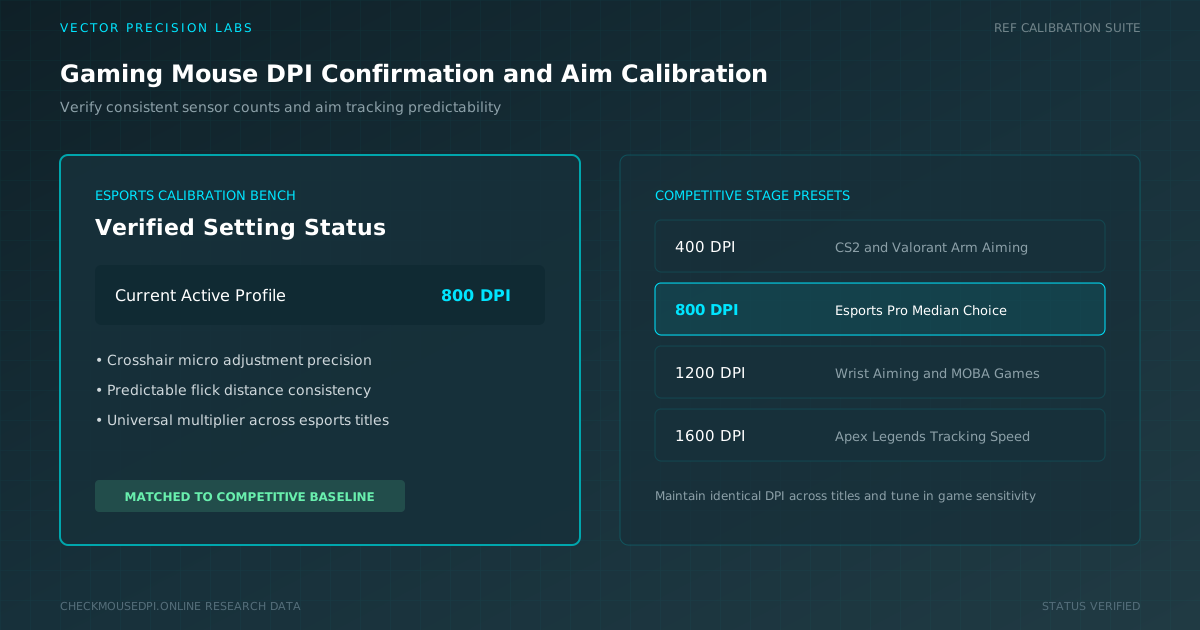
Knowing your gaming mouse DPI helps you understand how quickly the cursor responds to physical movement. DPI, or dots per inch, affects mouse sensitivity, aiming control, and cursor movement. Confirming your DPI is useful for competitive gaming because consistent settings can make your mouse movements more predictable.
Gaming mice commonly support settings such as 400, 800, 1200, and 1600 DPI. Instead of guessing your current setting, you can confirm it through the mouse controls, software, or a simple measurement.
Understanding DPI on a Gaming Mouse
DPI measures how far the cursor moves when you physically move the mouse. A higher DPI makes the cursor travel farther with less hand movement, while lower DPI requires larger movements.
For example, 800 DPI offers a useful balance between speed and precision for many players. Lower DPI can help with precise aiming, while higher DPI may suit rapid movements or smaller mousepad sizes.
Your preferred DPI depends on your game, screen resolution, mouse sensor, mousepad size, and playing style.
Locate the DPI Control on Your Mouse
Many gaming mice include a dedicated DPI button near the scroll wheel or underneath the mouse. Pressing this button usually switches between preset sensitivity levels.
Some mice use LED indicators to show the selected DPI stage. Because colors and settings vary by manufacturer, check the mouse manual or software to understand what each indicator means.
Knowing your available DPI presets makes it easier to identify the sensitivity currently being used.
Check DPI Through Mouse Software
Gaming mouse software is one of the most reliable ways to confirm DPI. Connect your mouse and open its configuration program. Find the DPI, sensitivity, or performance section.
The software usually displays the available DPI stages and highlights the active value. You may also be able to customize DPI settings, create profiles, and adjust sensitivity for different games.
This method is especially useful for mice with several DPI levels or advanced customization features.
Use Your Mouse Buttons to Identify DPI
A DPI button allows you to switch quickly between preset levels, but the button itself may not display the exact number.
If your mouse has indicator lighting, check the color after pressing the button. Otherwise, open the mouse software and match each button press with its assigned DPI value.
For example, if your presets are 400, 800, and 1600 DPI, knowing their order helps prevent accidental changes during competitive play.
Verify DPI With an Online Tool
An online DPI tester can estimate your mouse DPI by comparing physical mouse movement with cursor movement. This is useful when you want to check whether your actual tracking behavior matches the DPI shown in your software.
For better accuracy, turn off mouse acceleration before testing. Move the mouse across a measured distance and repeat the process several times to produce a more consistent result.
Measure DPI With a Simple Test
You can also estimate DPI manually without installing software. Mark a fixed distance on your mousepad and move the mouse carefully across it.
Observe how far the cursor travels and compare the movement with your expected DPI. Repeat the test to reduce measurement errors.
This simple method can help you understand how physical movement translates into cursor movement and whether your mouse behaves consistently.
Common DPI Settings and Their Uses
The table below shows common DPI settings used by gaming mice, along with the typical use case and aiming style each one tends to suit.
| DPI Setting | Typical Use | Aiming Style |
|---|---|---|
| 400 DPI | Precise, slow-paced aiming | Arm aiming |
| 800 DPI | Balanced speed and control | Arm or wrist aiming |
| 1200 DPI | Faster cursor response | Wrist aiming |
| 1600 DPI | Rapid movement, small mousepads | Wrist aiming |
Compare DPI With Cursor Movement
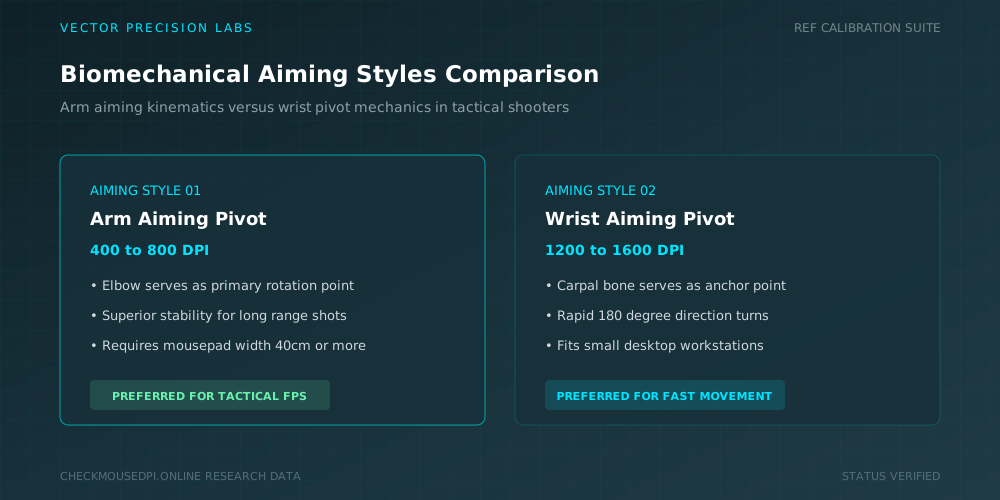
Cursor behavior can give you a quick idea of whether your DPI is low, medium, or high. Low DPI requires greater hand movement, while high DPI produces faster cursor movement from smaller physical motions.
Low DPI often works well with arm aiming, while higher DPI may suit wrist aiming. The better choice depends on comfort and control rather than the number itself.
Check DPI Across Different Games
Your mouse DPI can remain unchanged while your in-game sensitivity changes. Counter-Strike 2, Valorant, Overwatch, and Apex Legends all use their own sensitivity systems.
FPS games often require precise crosshair placement and target tracking. Strategy and MOBA games may benefit from faster cursor movement when navigating large areas.
Keeping a consistent DPI can also help build muscle memory, especially during competitive play.
Fix Incorrect or Inconsistent DPI
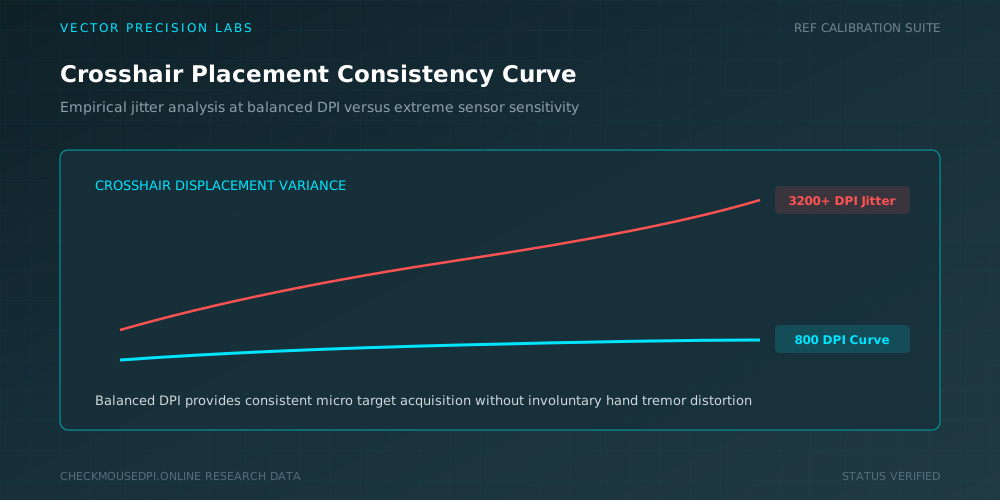
If your mouse suddenly feels faster or slower, check whether the DPI button was accidentally pressed. Then review your mouse software to confirm the active setting.
Mouse acceleration can also change cursor behavior depending on how quickly you move the mouse. Turning it off can provide more predictable movement.
A reliable mouse sensor and suitable polling rate can further improve tracking accuracy and responsiveness.
Set and Confirm Your Ideal DPI
Once you know your current DPI, test it in the games you play regularly. Start with a familiar value such as 800 DPI and make small adjustments instead of changing the setting dramatically.
Pay attention to precise movements, flick shots, target tracking, and overall comfort. Your screen resolution, mousepad size, grip style, and in-game sensitivity all influence the final result.
The best DPI is not necessarily the highest DPI. A good setting should feel natural, predictable, and easy to control. After finding a comfortable combination of DPI and in-game sensitivity, keeping it consistent can help strengthen muscle memory and improve your gaming performance.
Conclusion
Confirming your gaming mouse DPI does not have to be complicated. You can check it through mouse software, DPI buttons, indicator lights, and a simple movement test. Once you know your actual DPI, you can adjust your in-game sensitivity and create a more consistent setup.
Alex Rivera (Esports Analytics)
Researches human-computer interaction, optical sensor telemetry, and esports hardware performance at Vector Precision Labs.