How to Check Mouse DPI Quickly
Your cursor speed depends entirely on one hidden number most people never think about. Learning to check mouse DPI quickly takes only minutes.
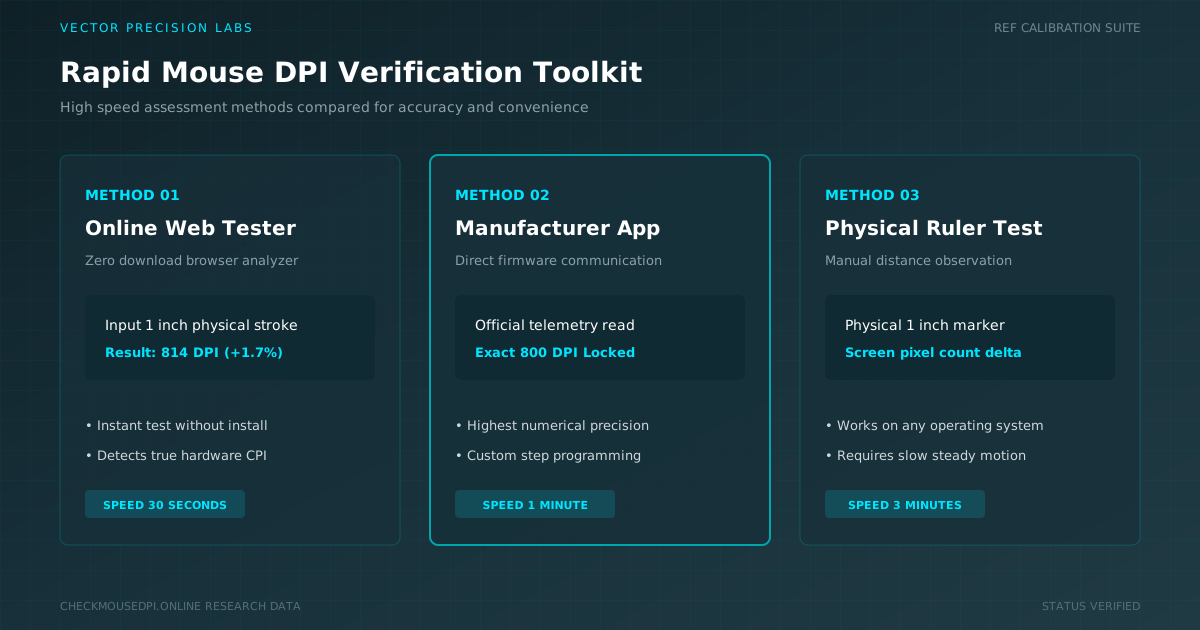
Your cursor speed depends entirely on one hidden number most people never think about. Learning to check mouse DPI quickly takes only minutes and instantly explains why your pointer feels fast, slow, or somewhere confusingly in between.
What Is Mouse DPI?
Mouse DPI, short for dots per inch, measures how far your cursor travels across the screen for every inch of physical mouse movement. A sensor inside tracks this motion and converts it into screen distance instantly.
Higher DPI settings create faster cursor speed, while lower values slow mouse pointer movement for careful precision. Understanding your current mouse DPI explains why identical hand motions feel completely different across separate devices entirely.
How to Check Mouse DPI
Checking DPI starts with the simplest option available: your mouse packaging. Many manufacturers print the actual DPI directly on the box, though gaming mice often list a wider DPI range instead of one fixed figure.
When packaging offers no clues, manufacturer software usually fills the gap. Brands like Logitech and Razer display live DPI value readings inside their apps, alongside options for adjusting pointer speed and button customization together.
Check DPI Without Software
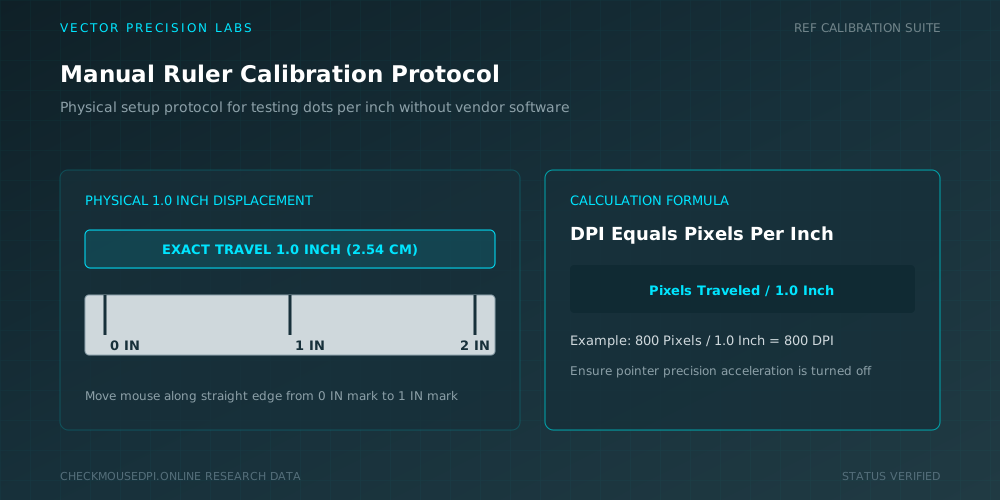
A ruler and steady hand accomplish this task without installing anything. Mark a starting point, move your mouse exactly one inch, then count how many pixels the mouse pointer traveled across your screen during that motion.
Repeating this process several times improves reliability significantly. Since mouse acceleration can distort quick movements, moving slowly and deliberately produces far more consistent DPI measurement results than rushing through a single hurried attempt.
Use an Online DPI Checker
A DPI calculator available through your browser removes manual guesswork entirely. These tools ask for movement distance, then calculate your DPI level using real-time cursor movement data pulled directly from your input.
Results vary slightly depending on screen resolution and surface texture. Still, an online checker remains one of the fastest ways to estimate mouse specifications without downloading dedicated DPI software onto your computer.
Check DPI on Windows
Windows mouse settings offer a built-in starting point for adjustment, even without revealing exact DPI numbers. Open Settings, select Devices, then Mouse, followed by Additional Mouse Options for deeper pointer configuration.
Inside that panel, disabling enhance pointer precision creates steadier, more predictable pointer speed slider behavior. This single adjustment often resolves erratic cursor complaints tied to Windows precision features interfering with raw sensor output.
Check DPI Using Mouse Software
Gaming mice typically include mouse driver software built specifically for precise configuration. Installing the official app from your manufacturer reveals exact DPI profile numbers alongside polling rate and button mapping options together.
These applications communicate directly with your mouse sensor, offering far more accuracy than manual estimation. Adjusting a sensitivity slider within the software also lets you save multiple profiles for different daily tasks.
How to Test Mouse DPI
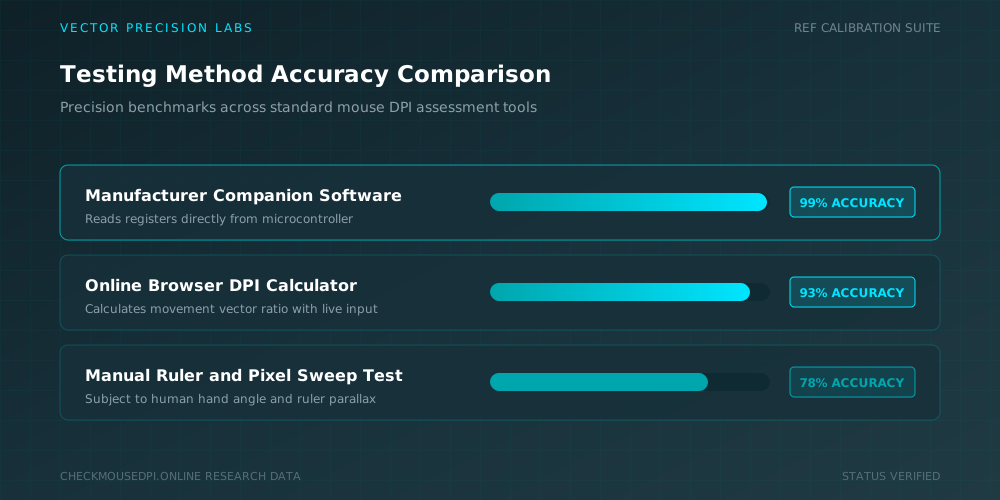
Testing accurately requires consistent conditions every single time. Use a flat, matte surface, disable acceleration beforehand, and move your mouse the same measured distance across multiple attempts for dependable, trustworthy results.
| Testing Method | Accuracy Level |
|---|---|
| Manufacturer Software | Highest |
| Online DPI Calculator | Moderate |
| Manual Ruler Test | Basic |
Choosing the right method depends on available tools and how precise your results truly need to be.
How to Find Your Mouse DPI
Finding your DPI value becomes simple once you know where to look first. Check the dedicated DPI button location on your mouse, since many models display current settings through small onboard LED indicators.
If your mouse lacks indicators entirely, manufacturer software remains the most reliable fallback option. These programs read data straight from the mouse driver, bypassing guesswork caused by inconsistent manual measurement techniques.
How to Check DPI Accuracy
Mouse accuracy depends heavily on sensor quality and testing conditions combined together. Cheaper sensors sometimes experience pixel skipping during fast movement, which throws off manual calculations performed without dedicated calibration tools.
Testing across several DPI stages helps confirm consistency throughout your mouse’s full range. Comparing results against in-game sensitivity or gaming sensitivity settings also reveals whether your current configuration truly matches expectations.
Change Your Mouse DPI
Changing DPI often requires nothing more than pressing the DPI switch located on top of most gaming mice. Each press cycles through preset DPI adjustment stages instantly, without opening any menu or software.
For finer control, mouse sensitivity settings inside manufacturer software allow custom values beyond factory presets. Saving separate profiles for browsing, gaming, and editing ensures comfortable mouse pointer behavior across every daily task.
Conclusion
Checking mouse DPI quickly requires nothing more than a few minutes and the right approach. Whether using software, an online tool, or a simple ruler test, understanding your true DPI improves comfort and control immediately.
Elena Rostova (Input Lab)
Researches human-computer interaction, optical sensor telemetry, and esports hardware performance at Vector Precision Labs.